Android / Mobile
Android client setup
Use the Hiddify client to connect to S-Speed research access nodes
1. Download the client
We recommend installing the Hiddify Android client to import and manage your research access configuration.
Fast direct downloadRecommended
Direct ZIP download from the official S-Speed download domain. Unzip it to get the APK installer for your phone.
Download note
The downloaded file is
Hiddify-Android-universal.zip. Unzip it and run the included .apk installer.2. Copy research access config / subscription link
Copy your dedicated configuration link below. Each user may use up to 2 devices at the same time; do not share it with others:
Log in to the dashboard to copy your dedicated accelerator configuration link
3. Setup steps
1
Install and initialize the client
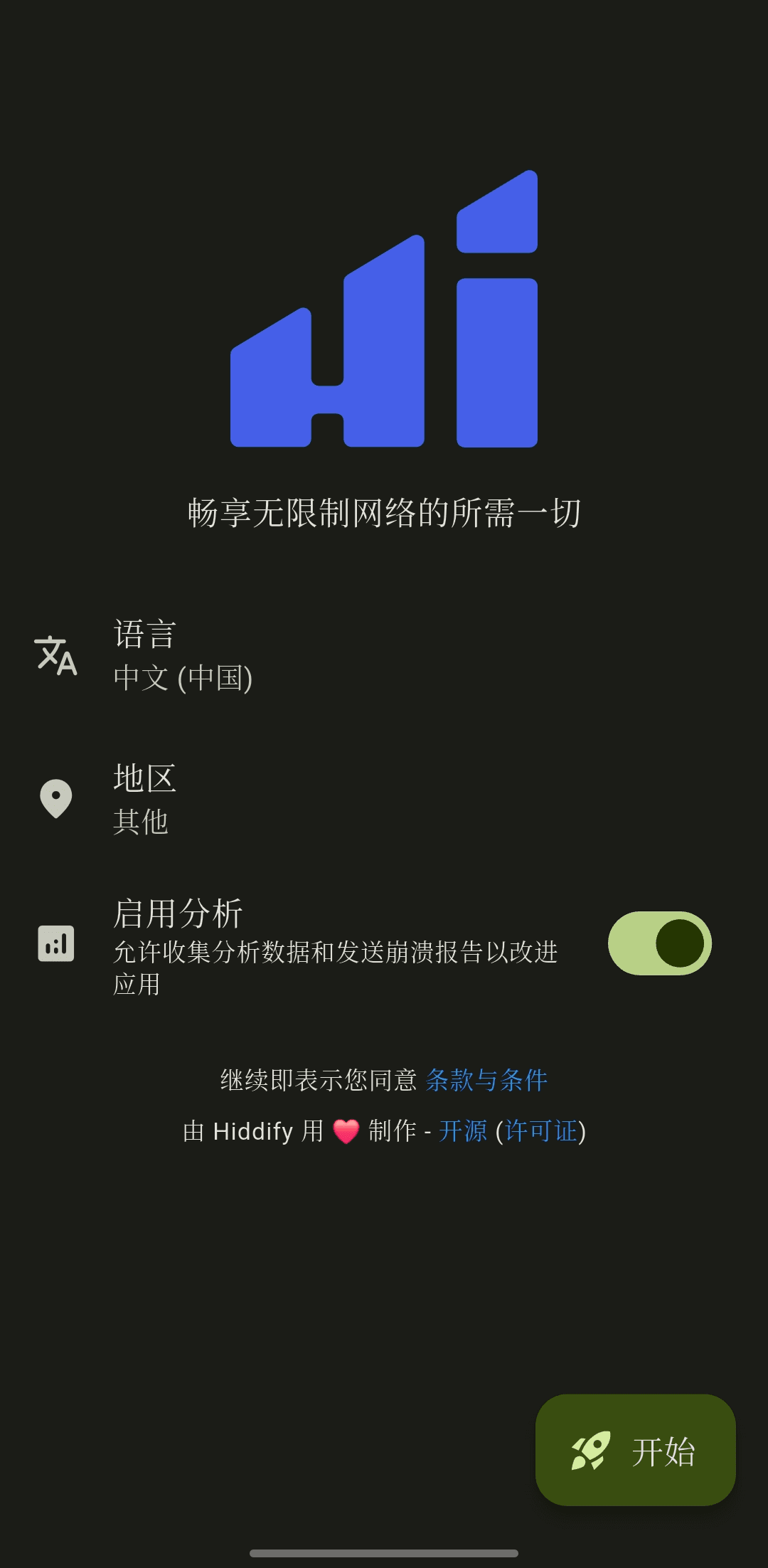
Open the downloaded APK on your phone. If Android asks to allow installation from unknown sources, allow it and finish installation. Launch the client, choose Chinese (China) or your preferred language, and tap Start.
2
Open the import menu
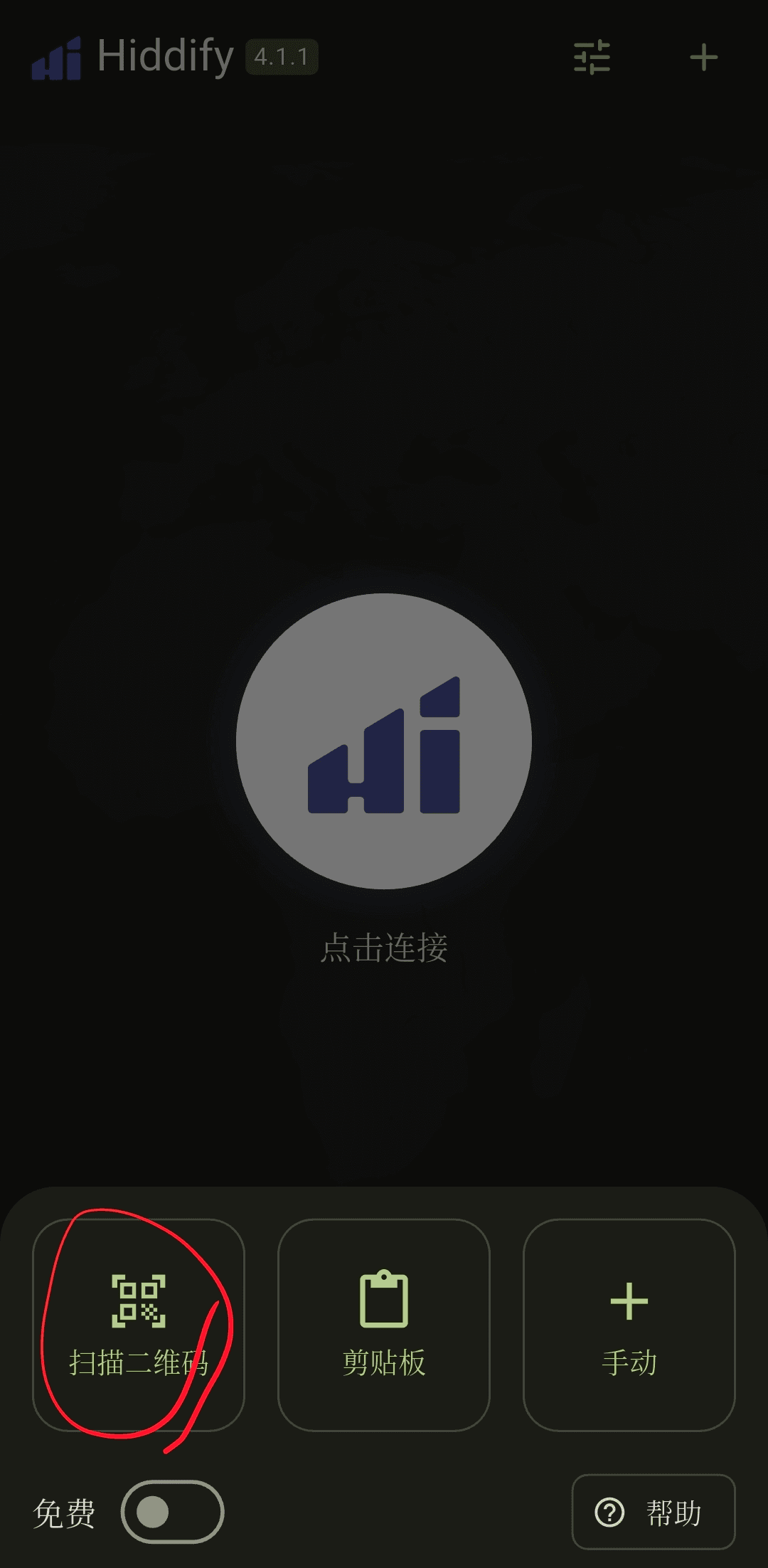
First copy your dedicated S-Speed academic access link from step 2 below. Open Hiddify and tap New Profile or the plus button to open the import menu.
3
Import from clipboard
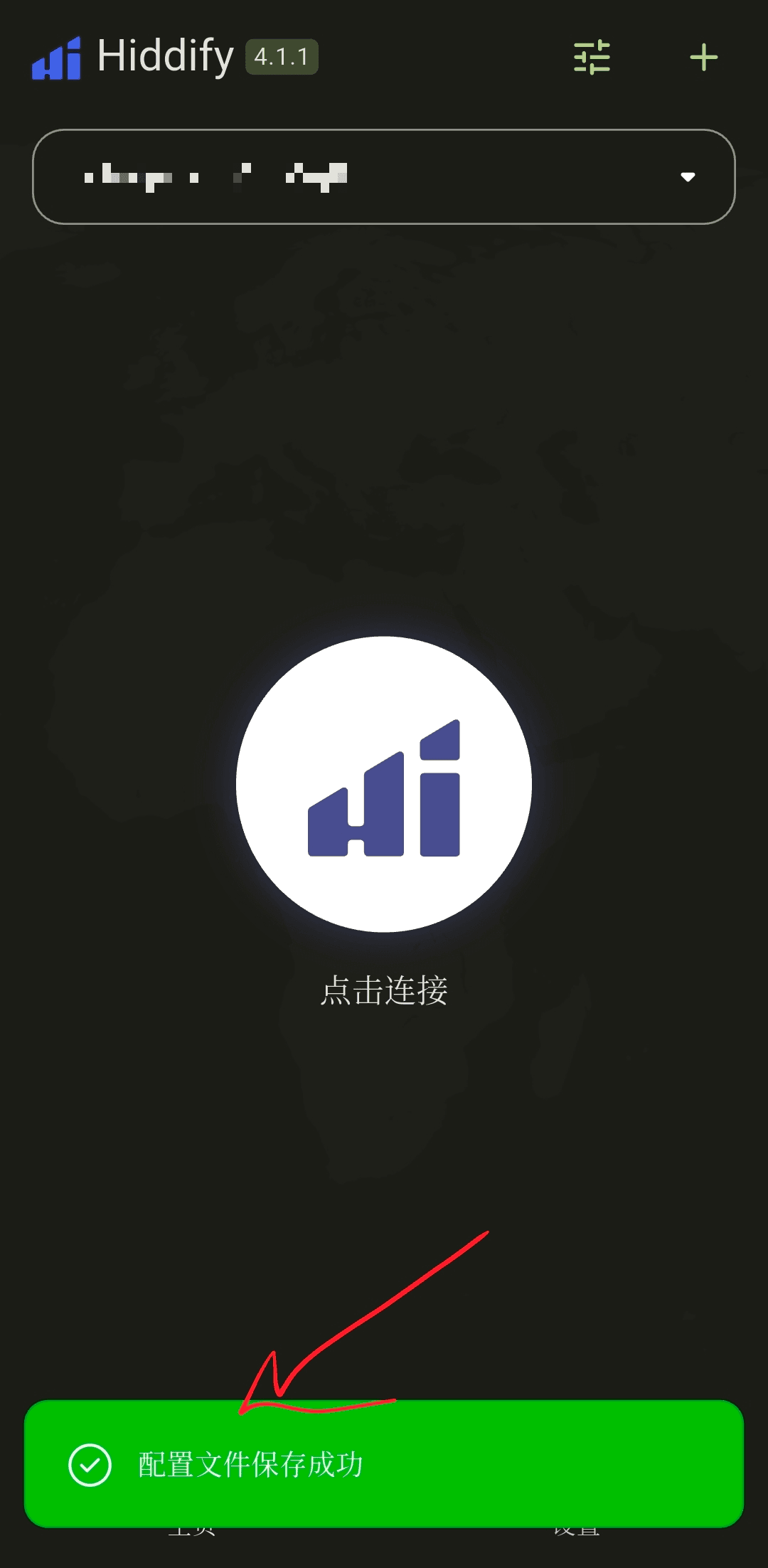
Choose Clipboard. After import, the client shows a green Profile saved successfully message and the imported profile card appears at the top.
4
Prepare to connect
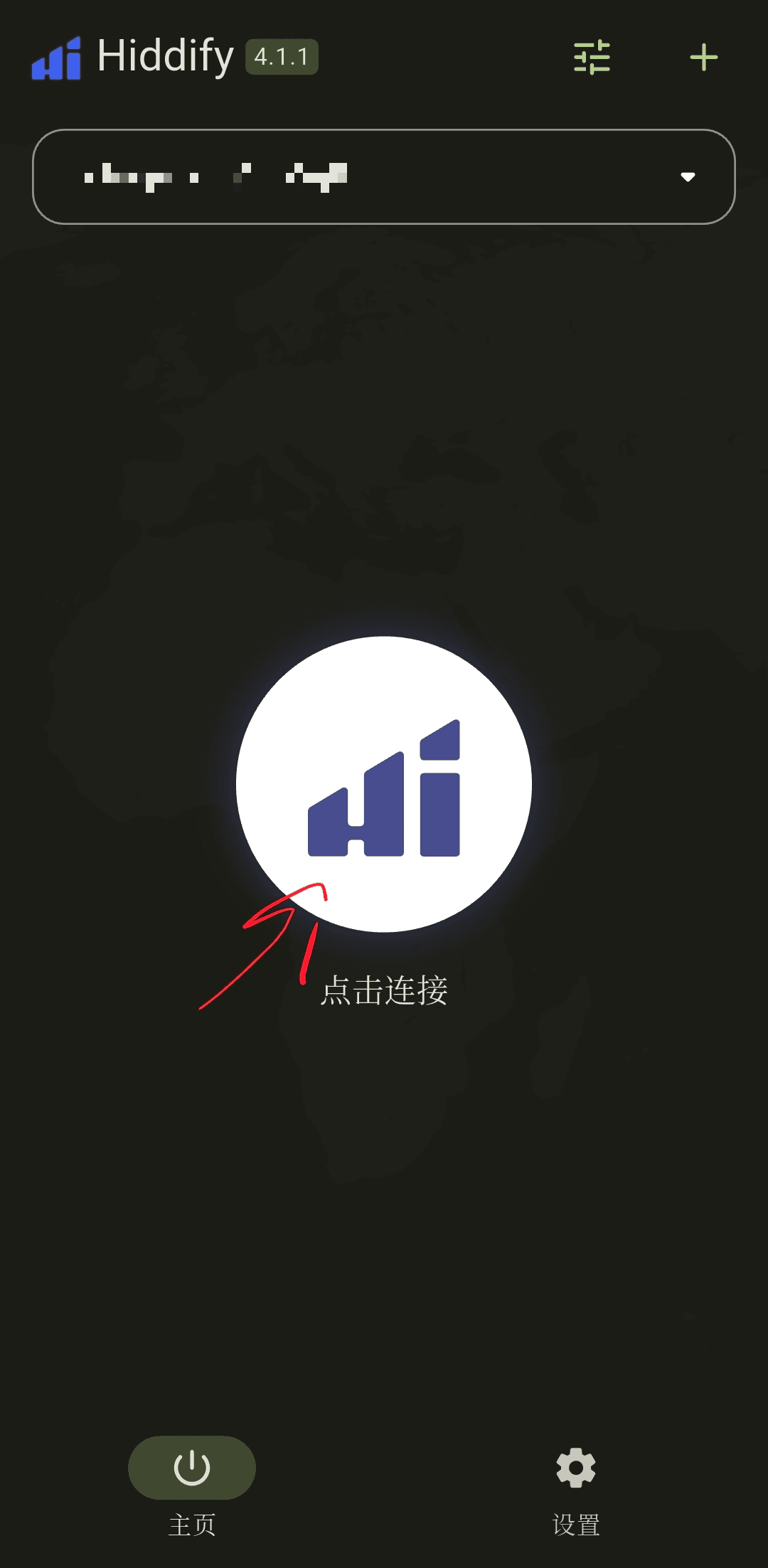
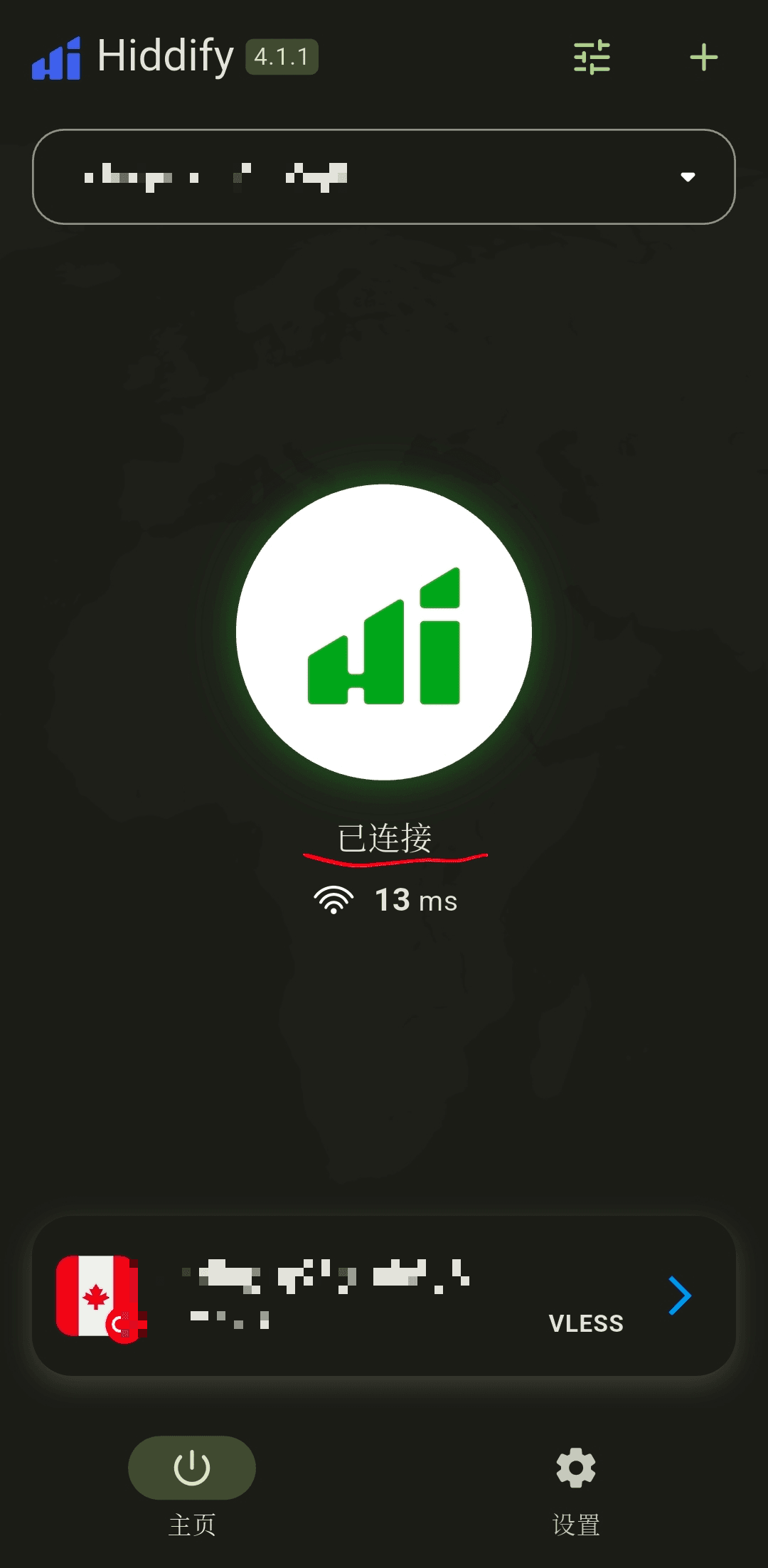
Confirm the imported node card is selected, then tap the center Tap to connect button.
5
Connected
On first connection, Android asks for network connection permission. Tap [OK/Allow]. When the circle turns green and shows Connected, and latency appears below, the academic accelerator connection is active.
Troubleshooting
Connection failed or speed test shows Timeout?
Check that your phone system time is accurate. Accelerator connections require accurate time sync, and a clock drift over 1 minute may cause failures. Enable automatic time and time zone in system settings.